How a recording becomes a fair copy.
The AI reads and proposes. Programmed checks test every proposal against the source. You decide.
The workflow in short
-
Transcribe
Every word is written down and timed to the original recording. The original file is never altered.
Watch: Transcribe, in the film How it works, with sound -
Read the whole
Your brief and the full transcript are read as one piece before a single cut is proposed.
Watch: Read the whole, in the film How it works, with sound -
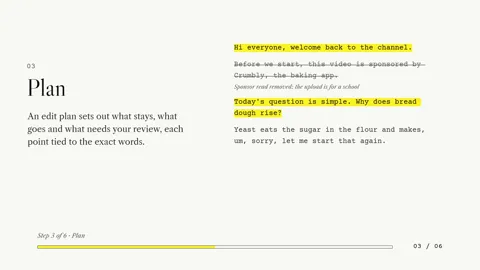
Plan
An edit plan sets out what stays, what goes and what needs your review, each point tied to the exact words.
Watch: Plan, in the film How it works, with sound -
Check
Programmed checks run on every planned cut before any footage is touched.
Watch: Check, in the film How it works, with sound -
Watch the draft
You watch the draft preview against your brief and approve it or ask for a change. Every change is saved as its own version that you can go back to.
Watch: Watch the draft, in the film How it works, with sound -
Render the final
The draft you approve is rendered at full quality as the final video, with captions timed to the edit.
Watch: Render the final, in the film How it works, with sound
In the application
Names and layout as in the approved design of the application.
What yellow means
- NowYour next step. One thing to do now, tagged Now or Next, with the one yellow button on the screen.
- 00:00:20Kept words. What stays is highlighted; what goes is struck through and stays readable.
- Where you are. The current page, stage or row is marked.
The next step
The Overview always shows the one thing to do now, tagged Now, with the yellow button.
Approving is never the yellow button. Approving a draft is your decision, so it stays an ordinary button beside it.
When the next step can’t be pressed yet, because a task is running, the tag goes quiet and the button greys out. Yellow never points at something you can’t press.
Seven pages
| Page | What it holds |
|---|---|
| Overview | The recording, the video you’re working on, its edited version, what to do now, and the five stages. |
| Recordings | Every original recording, with the videos made from it. |
| Editor | Why the current version works: every cut from the original, the pass that made it, and the reason recorded at the time. |
| Reviews | The next revision: your words, any outside advice, and a receipt of exactly what goes to Claude before anything starts. |
| Exports | The final video, the Shorts and the publishing text. |
| Tools | Every tool, grouped by what you want to do. |
| Help | The guide, searchable. F1 on any control shows its own help. |
Hover over anything, or Tab to it, to see what it does. A greyed control says why it isn’t available.
Five stages, on the Overview
- Transcript. The word-timed transcript every cut refers back to.
- Draft preview. A 540p preview of the edited version, to watch before anything else happens.
- Final video. Rendered at full quality, after you approve a draft.
- Shorts. Produced once, after you approve the long-form video and its final.
- Publishing. Publishing text for the video, written by the editor when a revision asks for it, or by you.
Three routes to the next version, on Reviews
-
A. ChatGPT edits the video
Free in Fair Copy
You copy a request to ChatGPT and paste back its editing plan. Nothing renders until every cut passes the check.
-
B. ChatGPT reviews the draft
Free in Fair Copy
ChatGPT returns advice, point by point. It changes nothing by itself: you accept or reject each point, or let Claude decide.
-
C. Claude revises the draft
Uses your Claude allowance
Claude makes the next edited version. You see a receipt of exactly what goes to Claude, and it starts only when you press Start.
Manual mode switches Claude off. Cut sheets, ChatGPT, rendering, Shorts and finals keep working. Dark by default, with a light theme one click away.
Each step, what’s checked, and what you decide
This is the workflow of the current build, as used on the creator’s own channel. See what it does.
| Step | What happens | What’s checked | Your decision |
|---|---|---|---|
| 1 Brief | You provide the recording and a brief: the purpose, audience, constraints and anything that must not be cut. | — | You write and own the brief. |
| 2 Transcript | The recording is imported without being altered. Its audio is sent to ElevenLabs for transcription, and the word-timed result is stored for reuse. | Transcription runs through your own ElevenLabs account, when you authorise it. | Authorise transcription, then check the transcript wherever accuracy matters. |
| 3 Plan | Claude Code proposes what stays, what goes and what needs review, each proposal tied to the source words. You can supply your own plan instead. | Checked at the next step. | Items marked “needs review” are left for you. |
| 4 Validate | Fair Copy Edit runs programmed checks on the plan, and flags context risks for your attention without resolving them. | Structure, valid ranges and boundaries, source links, timing, policy limits and protected decisions. | Resolve any flagged items. |
| 5 Draft preview | A 540p draft preview of the planned edit is rendered. | Render and sync checks. | — |
| 6 Review and revise | You watch the preview against your brief. Each correction produces a new version; re-rendering doesn’t need fresh AI planning. | Change reports between versions. | Approve, reject or revise. |
| 7 Final video | The approved version is rendered at full quality, with SRT captions remapped onto the edited timeline. | Render and sync checks. | Choose which approved version to render. |
| 8 Shorts | Vertical Shorts are extracted with face-aware framing and captions. | Not every recording yields a usable Short. | Review each Short before you use it. |
| 9 Retain | Lessons you approve are stored for later projects. | Proposed learning is kept separate from accepted instructions. | Accept or reject each lesson. |
What each check establishes, and what it doesn’t
- Structural and programmed validation. The plan is well-formed, within range, linked to the source and inside policy limits.
- Risk flagging. Possible editorial problems are raised for your attention. They are not resolved automatically.
- Your assessment. You judge whether the edited video keeps the speaker’s meaning, continuity and fairness.
A technically valid plan can still produce a misleading edit, and only the third check deals with meaning. Fair Copy Edit doesn’t approve its own editorial decisions and doesn’t publish anything. Publishing is always your action.
An old way of working
Documentary editors have long worked this way: read the transcript, mark it up on paper, then cut. Plenty of software now edits from a transcript. What’s different here is what reads it, what checks it, and that you answer for the result, not the machine.
Next: Interested in Fair Copy Edit?
Help answers the common questions. Enquiries and registrations of interest will open here once email for Fair Copy Edit is set up.
The contact form is temporarily closed while email is set up.
Fair Copy Edit for Windows. Fair Copy Edit for macOS: coming soon.
Please don’t send footage, passwords or personal documents through the form.